Showing posts with label JailBreak. Show all posts

How to Jailbreak Your iPhone 3GS Firmware 4.3.2 Using RedSn0w for Mac

// Category:


These are instructions on how to jailbreak your iPhone 3GS on the 4.3.2 firmware using RedSn0w for Mac.

If you want to jailbreak a lower firmware version you can find the appropriate tutorial here.

Make sure not to update to iOS 4.3.2 if you need an unlock as one is not yet available unless you opt to use the iPad baseband.

IMPORTANT FOR UNLOCKERS
During this process you can update your baseband to the 06.15 version. If you are on 05.14 or 05.15 or higher you will need to do this to unlock. You do not need to do this for jailbreak only. Please read the following very carefully before deciding whether to do this. You can find out baseband version here.

1. There is no way to come back down from 06.15, and there’s no hiding the baseband version from Apple. You’ll be voiding your warranty in a very obvious way.
2. If some future baseband comes out with a critical fix, you won’t be able to update to it if it remains down in the 05.xx sequence (then again, you wouldn’t update to it if you wanted to keep your unlock anyway).
3. Starting with FW 4.2.1 if you have 06.15 on your iPhone you won’t ever be able to restore to stock firmware (it will fail). You’ll need to only restore to custom IPSWs (then again, if you’re unlocker you should already be doing that).
4. There are reports that 06.15 may disable your GPS. The iPhone Dev-Team is currently working on a fix.

Don’t update to 06.15 if you don’t need to! Only do this if you need the unlock and you’re stuck on 05.14 or 05.15, and you're willing to assume the above risks. If your baseband is already unlockable and you are on a lower firmware version then use PwnageTool to update to 4.3.2 without upgrading your baseband.

Step One
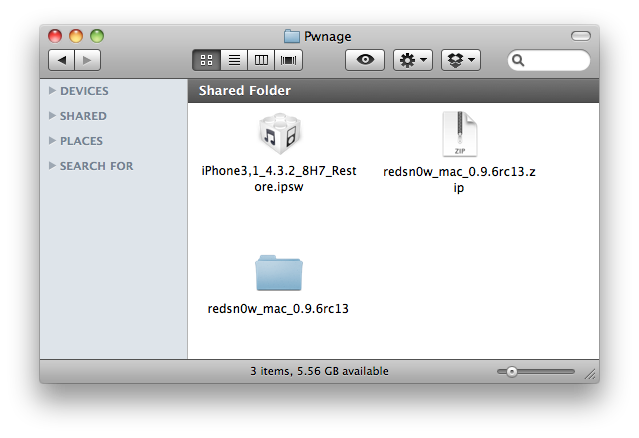
Create a folder on your desktop called Pwnage

Download RedSn0w from here and place it in the Pwnage folder. Likewise, download the latest 4.3.2 firmware from below and place it in the same folder.

4.3.2 (3GS): iPhone2,1_4.3.2_8H7_Restore.ipsw

Extract the RedSn0w zip file by double clicking it.

Step Two
Connect your iPhone to the computer and launch iTunes.


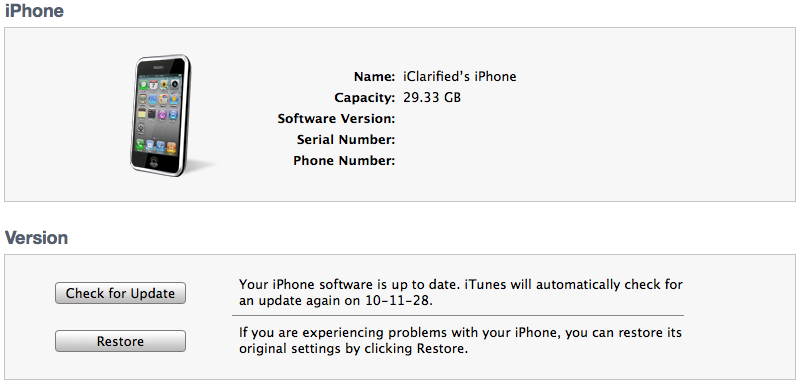
Select your iPhone from the list of devices on the left. Now hold down Option and click the Restore button. Restore is preferred as it won't create any wasted space on your iPhone.

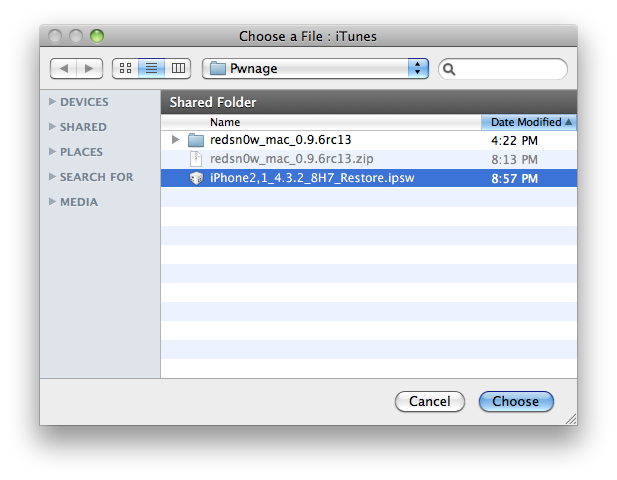
Navigate to the Pwnage folder on your desktop and select the 4.3.2 firmware ipsw. Click the Choose button to continue.

Step Three
Once iTunes has finished updating your iPhone to the desired firmware open the Pwnage folder on your desktop and launch the redsn0w application from the redsn0w folder we extracted earlier.


Step Four
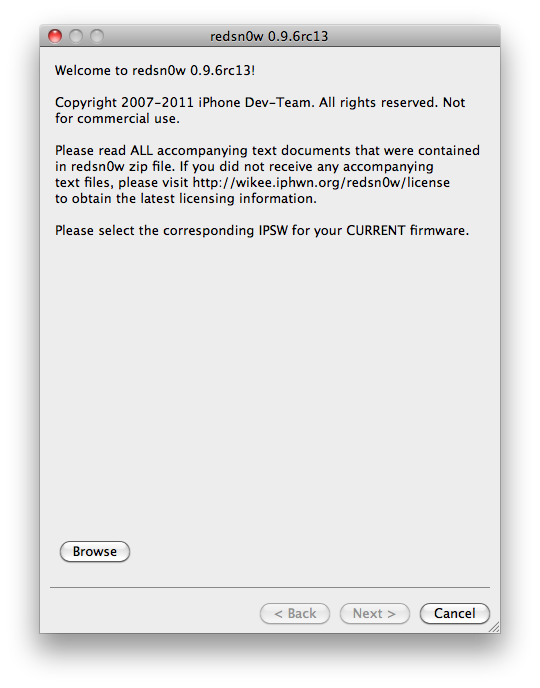
Once RedSn0w opens click the Browse button

How to Jailbreak Your iPhone 3GS Firmware 4.3.2 Using RedSn0w for Windows

// Category:


These are instructions on how to jailbreak your iPhone 3GS on the 4.3.2 firmware using RedSn0w for Windows. The Mac version of this tutorial is here.

Make sure not to update to iOS 4.3.2 if you need an unlock as one is not yet available unless you opt to use the iPad baseband.

IMPORTANT FOR UNLOCKERS
During this process you can update your baseband to the 06.15 version. If you are on 05.14 or 05.15 or higher you will need to do this to unlock. You do not need to do this for jailbreak only. Please read the following very carefully before deciding whether to do this. You can find out baseband version here.

1. There is no way to come back down from 06.15, and there’s no hiding the baseband version from Apple. You’ll be voiding your warranty in a very obvious way.
2. If some future baseband comes out with a critical fix, you won’t be able to update to it if it remains down in the 05.xx sequence (then again, you wouldn’t update to it if you wanted to keep your unlock anyway).
3. Starting with FW 4.2.1 if you have 06.15 on your iPhone you won’t ever be able to restore to stock firmware (it will fail). You’ll need to only restore to custom IPSWs (then again, if you’re unlocker you should already be doing that).
4. There are reports that 06.15 may disable your GPS. The iPhone Dev-Team is currently working on a fix.

Don’t update to 06.15 if you don’t need to! Only do this if you need the unlock and you’re stuck on 05.14 or 05.15, and you're willing to assume the above risks. If your baseband is already unlockable and you are on a lower firmware version then use PwnageTool to update to 4.3.2 without upgrading your baseband.

Step One
Create a folder on your desktop called Pwnage

Download RedSn0w from here and place it in the Pwnage folder. Likewise, download the latest 4.3.2 firmware from below and place it in the same folder.

4.3.2 (3GS): iPhone2,1_4.3.2_8H7_Restore.ipsw

Extract the RedSn0w zip file into the same folder.


Step Two
Connect your iPhone to the computer and launch iTunes.


Select your iPhone from the list of devices on the left. Now hold down Shift and click the Restore button. Restore is preferred as it won't create any wasted space on your iPhone.


Navigate to the Pwnage folder on your desktop and select the 4.3.2 firmware ipsw. Click the Open button to continue.

Jailbreaking iPhone 3GS and iPhone 4 Using Greenpois0n

// Category:
greenpois0n website Step by Step Guide in Jailbreaking iPhone 3GS and iPhone 4 Using Greenpois0n
Finally, Chronic Dev Team released Greenpois0n jailbreak tool. It was supposed to be released on October 10 but because of the debut of LimeRa1n, it was postponed until the 13th. A few days back I published Step-by-Step Guide on How To Jailbreak iPhone 3GS & 4 Using GeoHot’s LimeRa1n which I personally did and was successful that my iPhone is working fine until today which I have already jailbroken using Greenpois0n.

Important things you should know before jailbreaking your iPhone iOS 4.1 using Greenpois0n.

* Just like LimeRa1n, Greenpois0n is just a jailbreaking tool to jailbreak iOS 4.1. If you rely on Ultrasn0w to unlock your iPhone, DO NOT upgrade to iOS 4.1 directly.

* This tool is available for Windows users only as of this writing. You can check its official website by Clicking Here.

* Greenpois0n supports the following; iPhone 4, iPhone 3GS, iPod Touch 4G and 3G and iPad running iOS 3.2.2.

Alright, without further adieu, here is the step-by-step tutorial to jailbreak iPhone with Greenpois0n;

Step 1: Visit Greenpois0n Official Website
Launch your browser and visit http://www.greenpois0n.com and click ‘Windows‘ button.
Step 2: Download Greenpois0n
Upon clicking on the button, you will be prompted to ‘Open’, ‘Save’ or ‘Cancel’. Download it into a directory that you can easily find; you will be downloading gp_win_rc3.zip.

How to Jailbreak Your iPad Using RedSn0w (Windows) [4.2.1]

// Category:

These are instructions on how to jailbreak your iPad on the 4.2.1 firmware using RedSn0w for Windows. The Mac version of this tutorial is here.

You will only be able to perform a tethered jailbreak at this time. This means you will need Redsn0w's assistance to boot into your jailbroken device. If you want to jailbreak a lower firmware version you can find the appropriate tutorial here.

Step One
Create a folder on your desktop called Pwnage

Download RedSn0w from here and place it in the Pwnage folder. Likewise, download the latest 4.2.1 firmware from below and place it in the same folder.
 

Step Two
Connect your iPad to the computer and launch iTunes.


Select your iPad from the list of devices on the left. Now hold down Shift and click the Restore button. Restore is preferred as it won't create any wasted space on your iPad.


Navigate to the Pwnage folder on your desktop and select the 4.2.1 firmware ipsw. Click the Choose button to continue.


Step Three
Once iTunes has finished updating your iPad to the desired firmware open the Pwnage folder on your desktop and launch the redsn0w application from the redsn0w folder we extracted earlier.


Step Four
Once RedSn0w opens click the Browse button

How to Unlock the iPhone 4, 3GS, 3G Using UltraSn0w

// Category:
These are instructions on how to unlock the iPhone 4, iPhone 3GS, and iPhone 3G for use with any GSM cellphone carrier using UltraSn0w. This will work with the iOS 4.2.1 firmware if you are on the 06.15.00 baseband.

Before you can follow these instructions you must have a jailbroken iPhone and you must be on the 04.26.08, 05.11.07, 05.12.01, 05.13.04, 06.15.00, or 01.59 baseband(modem firmware).

To find your firmware and modem firmware(baseband) versions you can follow this tutorial.

If you are on T-Mobile remember to turn off 3G before starting...
Step One
Press to launch Cydia Installer from your SpringBoard.


Step Two
Press to select the Manage tab at the bottom of the screen.

How To Jailbreak iPhone 4G, iPhone 3GS Using Limera1n [Windows]

// Category:
Geohot surprised everyone by releasing limera1n yesterday, a day before the release of greenpois0n by the Chronic Dev Team.

Limera1n can jailbreak iPhone 3GS, iPhone 4, iPad, iPod Touch 3G and the new iPod Touch 4G.

In this guide, we will take you through the step by step procedure to jailbreak iPhone 4 and iPhone 3GS.

Here are some important points to note before you proceed.

* This guide is only for iPhone 4 and iPhone 3GS users. iPod Touch 3G and iPod Touch 4G users can use this step by step guide to jailbreak their iPhone using limera1n. iPhone 3G and iPod Touch 2G users can use Redsn0w to jailbreak their iPod Touch.

* Please note that jailbreaking your iPhone may void your warranty and hence proceed with caution.
*

Do not forget to backup your iPhone before you proceed. You can refer to this post for instructions on how to backup your iPhone.
*

Limera1n supports iOS 4, iOS 4.0.1, iOS 4.0.2 and iOS 4.1.
*

Limera1n is currently available for Windows, Geohot plans to release the Mac and Linux versions of limera1n soon.
*

Please do NOT upgrade to iOS 4.1 if you want to unlock your iPhone. You should wait for iPhone Dev Team to release PwnageTool.
*

Limera1n does NOT hactivate your iPhone, so your iPhone should be activated via iTunes first.
*

After the jailbreaking process is complete, do not forget to checkout our article on tips to keep your iPhone secure.
*

Please ensure you are running iTunes 9.2 or later.

Step 1: Download the latest version of limera1n from this link and save the application on your desktop.
Step 2: Double click on the limera1n exe to launch the application.
Step 3: Please ensure that your iPhone is connected to the computer.
Step 4: Click on the "make it rain” button.
Limera1n
Step 5: You will see that limera1n puts your iPhone in recovery mode. Immediately after this, follow the instructions.
Limera1n
Step 6: Limera1n will be prompt you to press both the home and power buttons.
Limera1n
Step 7: Limera1n will be then prompt you to release the Power button. Continue to press the home button.
Limera1n
Step 8: You will see that limera1n has put your iPhone in DFU mode. Continue to press the home button.
Limera1n
Step 9: While limera1n performs the exploit, you will see the limera1n logo on your iPhone.
Limera1n
Step 10: When limera1n has successfully jailbroken your iPhone, you will see “done” and get the following message.

Related Posts Plugin for WordPress, Blogger...